
Yes! With the bulk selection feature, you can assign a single WooCommerce cart message to multiple products simultaneously, regardless of their category. This saves you time and ensures consistency across your store when displaying WooCommerce cart notices.
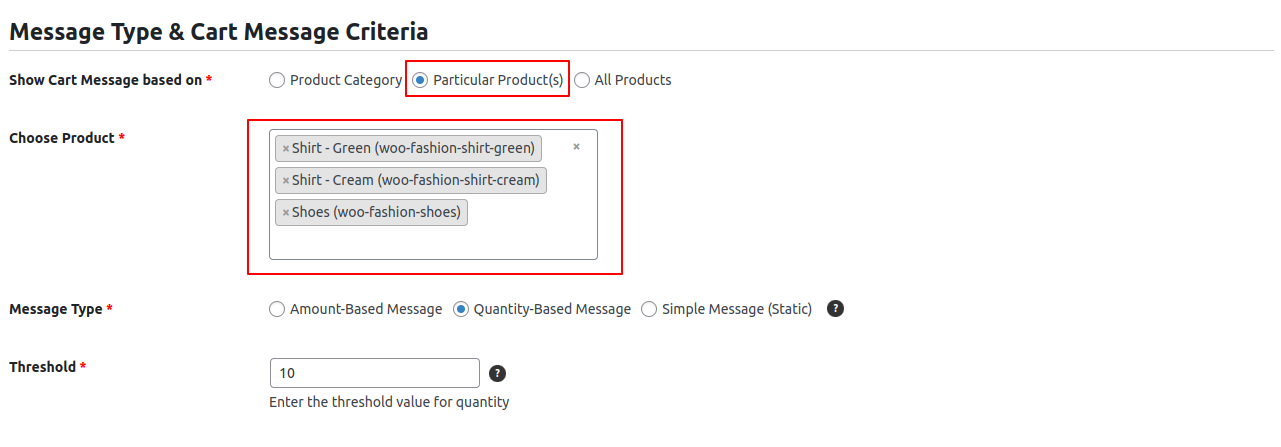
You can follow the steps below to add a cart message to multiple products:
- Add a New Cart Message: Start by creating a new cart message.
- Go to the Message Configuration Tab: In the first tab, Message Configuration, locate the Cart Message Criteria & Product(s) Selection section.
- Select Specific Products: Under Select Product(s) for Message, choose the second option: Particular Product(s).
- Choose Products A product list will appear below with all products on your site. Here, you can select a single product or multiple products to apply the cart message to.
Set up the remaining configurations (such as message content, appearance, and enhancements), and then publish the cart message to make it visible on the cart page.