
General Settings let you define default configurations for the product slider across your site. These options help ensure visual consistency and reduce the need for repeated customization. You can set the default background color, button color, and product image size. While these defaults apply to all sliders, certain values—such as styling—can be customized individually if needed.
To access General Settings, go to the WordPress backend menu, click on Related Product Pro > Settings > General.
In the General Settings page, you will find 5 sections
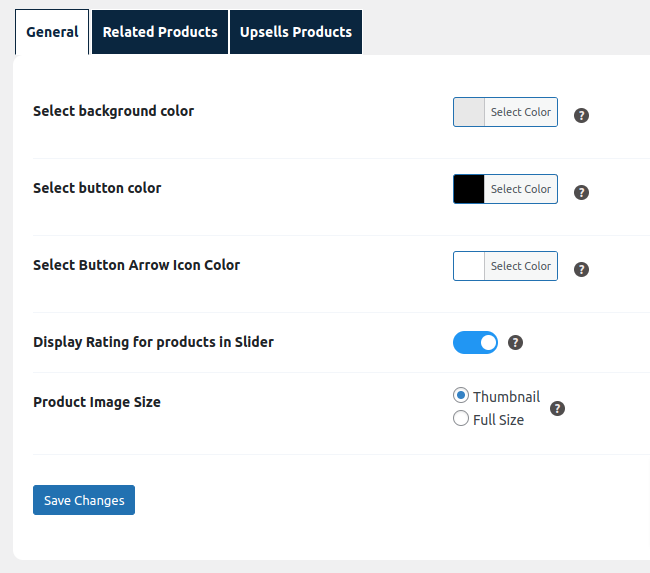
- Select background color: This setting allows admin to pick the background color to change the background color of the product slider.
- Select button color: This setting allows admin to pick the color to change the color of the previous and next button within the Products slider.
- Product Image Size: This setting allows admin to select image size of products to display to users.
The chosen background color in the ‘Select Background Color‘ setting will be applied as the background color. Similarly, the color selected in the ‘Select Button Color‘ setting will be utilized for the previous and next buttons within the product slider.
By default, the background color is set to gray, and the button color is set to black for the product slider as shown in the image above. The ‘Product Image Size‘ setting determines the size of images displayed in the product slider and products page for all the features.