
Recently Viewed Products Setting Section
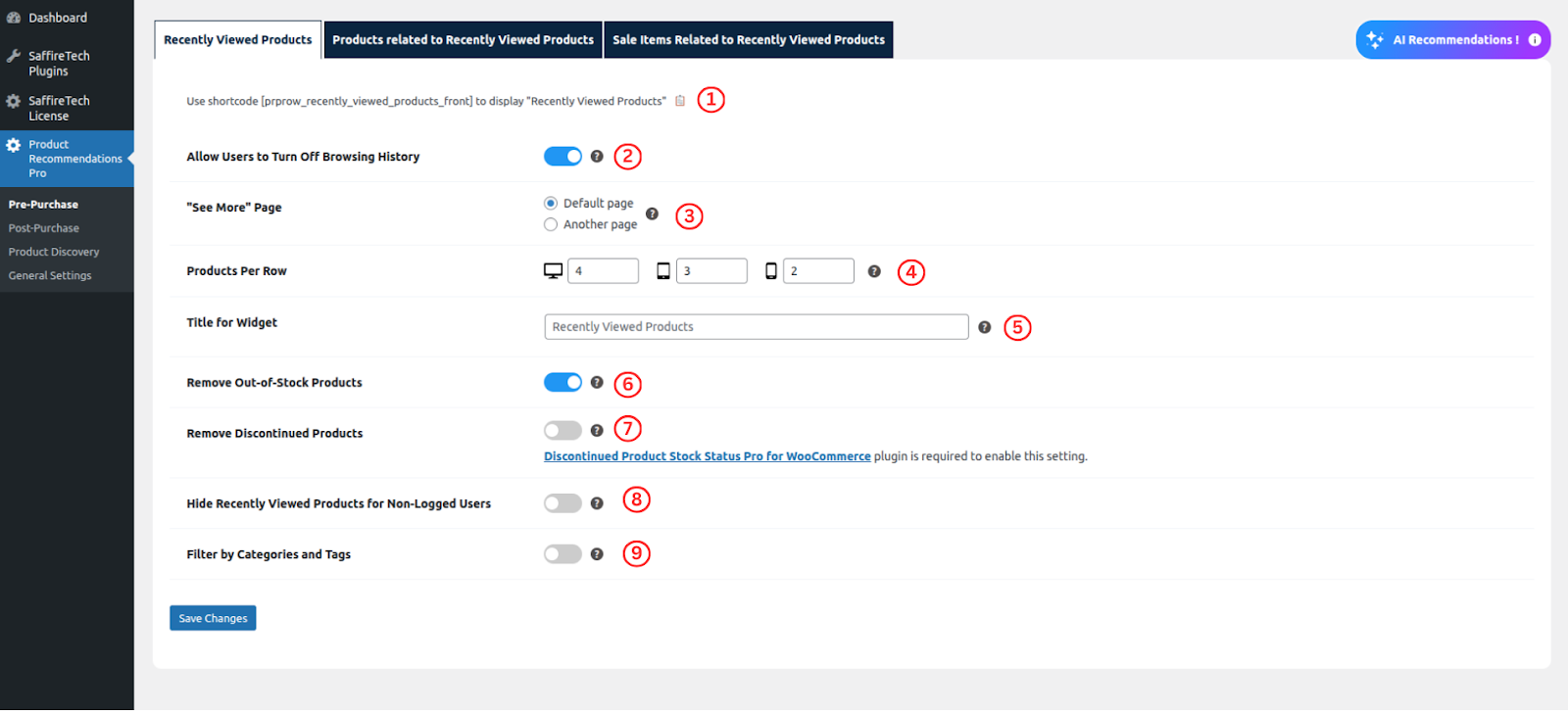
- Using the button (1), admins can copy a shortcode to paste on any page. This shortcode renders the product’s slider.
- Allow Users to Turn Off Browsing History : Navigate to the ‘Product Recommendations Pro’ menu on Dashboard. Under the submenu ‘Recently Viewed Products,’ admin can toggle the ‘Allow Users to Turn Off Browsing History‘ switch to control whether users can enable or disable their Browsing History.

The Products Page, showcasing recently viewed items, features a ‘Turn On or Off Browsing History’ switch. Its visibility is determined by the ‘Allow Users to Turn Off Browsing History’ setting.

Visit My Account > Account Details to locate the ‘Manage Browsing History‘ section at the bottom of the page. The visibility of this section is controlled by the ‘Allow Users to Turn Off Browsing History’ setting.
- “See More” Page: This setting lets admin can change the destination of the “See more” link for “Recently Viewed Products”. By default, it leads to the standard page. If admin can choose the “Another page” option, admin can then specify the page title in the “Choose page title” field.
- Choose page title : ( Mandatory Field if “Another page” option is selected ) In this field, admin can select preferred page from the dropdown. The selected page should contain the shortcode [prprow_recently_viewed_products_back]. This page will open when users click the “See more” link. This link is visible on the “Recently Viewed Products” products slider.
- Using the button (d), admins can copy a shortcode to paste on any page. This shortcode renders all products on a page.
- Products Per Row : This setting enables administrators to specify the number of products displayed in the ‘Recently Viewed Products’ slider for various resolutions, including desktop, tablet, and mobile.
- Title for Widget : This setting allows admin to specify the title admin wants to display for the “Recently Viewed Products” widget, product slider and products page.
- Remove Out-’ing empowers admin to include or exclude out-of-stock products. By default, all out-of-stock products are not displayed.
- Hide Products related to Recently Viewed Products for Non-Logged Users : This setting gives admin the option to show or hide “Recently Viewed Products” products slider to users who are not logged in.

The highlighted section (1) displays the title for the product slider, and the ‘See more’ link which directs users to another page determined by the admin, which is configured through the settings “See More” Page and Choose page title. The ‘Title for Widget’ setting is employed to showcase a customized title for the product slider.
Products related to Recently Viewed Products

- Using the button (1), admins can copy a shortcode to paste on any page. This shortcode renders the product’s slider.
- “See More” Page : This setting lets admin to change the destination of the “See more” link for “Products related to Recently Viewed Products” By default, it leads to the standard page. If admin chooses the “Another page” option, admin can then specify the page title in the “Choose page title” field.
- Using the button (c), admins can copy a shortcode to paste on any page. This shortcode renders all products on a page.
- Choose page title : ( Mandatory Field if “Another page” option is selected ) In this field, admin can select preferred page from the dropdown. The selected page should contain the shortcode [prprow_related_recently_viewed_products_back]. This page will open when users click the “See more” link. This link is visible on the “Products related to Recently Viewed Products” products slider.
- Products Per Row : This setting allows admin to specify the number of products to display within the “Products related to Recently Viewed Products” products slider.
- Title for Widget : This setting enables the admin to specify the title the admin wants to display for the “Products related to Recently Viewed Products” widget, products slider and products page.
- Remove Out-of-Stock Products: This setting empowers admin to include or exclude out-of-stock products. By default, all out-of-stock products are not displayed.
- Hide Products related to Recently Viewed Products for Non-Logged Users : This setting gives the option to show or hide “Products related to Recently Viewed Products” products slider for users who are not logged in.
On-Sale Products related to Recently Viewed Products

- Using the button (1), admins can copy a shortcode to paste on any page. This shortcode renders the product’s slider.
- “See More” Page : This setting lets admin to change the destination of the “See more” link for “Products related to Recently Viewed Products” By default, it leads to the standard page. If admin chooses the “Another page” option, admin can then specify the page title in the “Choose page title” field.
- Using the button (c), admins can copy a shortcode to paste on any page. This shortcode renders all products on a page.
- Choose page title : ( Mandatory Field if “Another page” option is selected ) In this field, admin can select preferred page from the dropdown. The selected page should contain the shortcode [prprow_related_recently_viewed_products_back]. This page will open when users click the “See more” link. This link is visible on the “Products related to Recently Viewed Products” products slider.
- Products Per Row : This setting allows admin to specify the number of products to display within the “Products related to Recently Viewed Products” products slider.
- Title for Widget : This setting enables the admin to specify the title the admin wants to display for the “Products related to Recently Viewed Products” widget, products slider and products page.
- Remove Out-of-Stock Products: This setting empowers admin to include or exclude out-of-stock products. By default, all out-of-stock products are not displayed.
- Hide Products related to Recently Viewed Products for Non-Logged Users : This setting gives the option to show or hide “Products related to Recently Viewed Products” products slider for users who are not logged in.
Filter Products
The filter will be effective for ‘Recently Viewed Products’, ‘Products Related to Recently Viewed Products’ and ‘On-Sale Products Related to Recently Viewed Products’.
- Filter by Categories and Tags: Toggle the switch ‘Filter by Categories and Tags’ to include or exclude certain products based on their categories or tags. By default, all products are tracked.
- Filter Mode : ( Mandatory Field if ‘Filter by Categories and Tags’ switch is on )This setting allows to select of the filter mode for products, offering the flexibility to refine products displayed to users based on categories, tags, or a combination of both. These filter modes serve as powerful tools, allowing to inclusion or exclusion of products based on specific criteria.
- Categories Only: Products will be filtered exclusively by their assigned categories.
- Tags Only: Products will be filtered exclusively by their assigned tags.
- Categories and Tags: This option enables a comprehensive filter, considering both categories and tags simultaneously.
- Category Filter Mode : ( Mandatory Field if ‘Categories Only’ or ‘Categories and Tags’ is chosen) This setting allows to choose “Exclude Categories” to remove products of those categories, and “Include Categories” to display products having those categories in the widget, products slider and products page
- Categories to Exclude: This setting allows to select multiple categories to exclude products of that categories from widget, products slider and products page
- Categories to Include: This setting allows to select multiple categories to include products of that categories in widget, products slider and products page
- Tag Filter Mode : ( Mandatory Field if ‘Tags Only’ or ‘Categories and Tags’ is chosen ) This setting allows to choose “Exclude Tags” to remove products containing those tags, and “Include Tags” to display products containing those tags from the widget, products slider and products page.
- Tags to Exclude: This setting allows the admin to select multiple tags to exclude products containing those tags from the widget, products slider and products page
- Tags to Include: This setting allows the admin to select multiple tags to include products containing those tags in the widget, products slider and products page
- If the user has viewed products in categories such as men, women, and accessories, and the admin has excluded the accessories category only, the user will only see products from the men and women categories in their recently viewed products. In the same way, the filter operates for ‘Only Include Category’, ‘Only Exclude Tag’ and ‘Only Include Tag’.
- If the user has viewed products in the ‘men’ category, and some of those products contain the tag ‘vogue’, and the admin has excluded the ‘men’ category while including the ‘vogue’ tag, the user will not be able to view products with the ‘vogue’ tag since they have already been removed by excluding the ‘men’ category.
- If the user has viewed products in the ‘men’ category, and some of those products contain the tag ‘vogue’, and the admin has included the ‘men’ category while excluding the ‘vogue’ tag, the user will still be able to view products with the ‘vogue’ tag, as they have already been included in the ‘men’ category.